In Saudi Arabia, invoices follow ZATCA e-invoicing rules, and for a restaurant the till is where they are met or missed. Every sale ends in a receipt, so the receipt is the best place to check whether your point of sale is ready. This post sets out what to look for on the receipt, what to check across branches, and which questions to put to any POS vendor, including us.
Why the receipt is the test
A brochure can say "ZATCA-ready" about anything. A receipt cannot. It either carries what it should, on every sale, or it does not.
That is also the problem with leaving it to chance. A restaurant group may run a different till at each branch. If the tills differ, so does the way each one produces an invoice, and VAT ends up reconciled in spreadsheets at month end. The risk sits at the till, one sale at a time.
What "ZATCA-ready" should mean on your till
"Ready" is a statement about the product, not a stamp from anyone. It means the till is built to produce invoices the way ZATCA's e-invoicing rules ask, and that you can see it doing so.
This post does not list ZATCA's technical requirements. They are set by ZATCA itself and can change, so check them against what ZATCA currently publishes, or with your accountant. What we can give you is a practical way to test any POS against them: print a receipt and look.
Five checks on the receipt itself
Ring up a test sale and print the receipt. Then check:
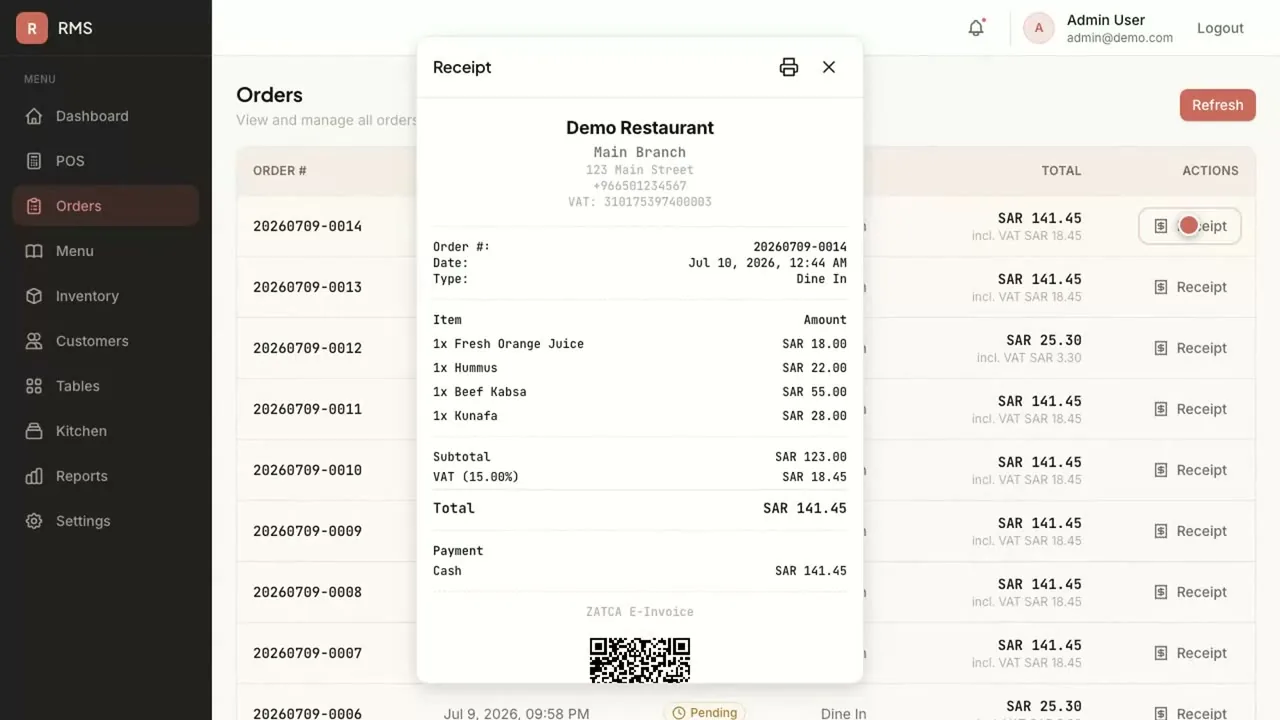
- A QR code is on it, and nobody had to ask for it. It should print automatically on every receipt. A QR that the cashier must remember to request will be missed on the busiest night.
- VAT is applied by the till. The cashier should not calculate it. The receipt should show the subtotal, the VAT and the total as separate lines.
- It works the same for every order type. Ring the same sale as dine-in and as takeaway, and compare the receipts.
- You can open and print any receipt again later. Customers ask for copies, and so does your accountant. Check that you can find an old order and reprint its receipt.
- The receipt matches the order. The items, quantities and totals on paper should match what the kitchen display and the orders list show.
Three checks across your branches
One good till is not a system. If you run more than one branch, check these too.
- Every branch produces the same receipt. Test at the quietest branch as well as the head office.
- Branch sales come together in one place. If someone assembles them by hand, errors will enter there.
- VAT can be reported by period, and exported. You should be able to pull a VAT report for a day, a week or a month and export it to Excel or PDF for your accountant.
Questions for the edge cases
A demo shows the happy path. These are the moments that decide whether the product holds up. Put them to every vendor, and ask for answers in writing.
- What happens when a sale is cancelled, changed or refunded after the receipt has printed?
- What happens if the internet connection drops during service?
- When ZATCA's requirements change, who updates the till, and how quickly?
- If we add a branch, what else do we have to buy or set up?
A good answer is specific. A vague one is an answer too. Put these questions to us as well.
How to run the check
Do it in one session, not over a week.
- Ask the vendor for a test account, or use a demo till.
- Ring up three sales: dine-in, takeaway, and one with several items.
- Print each receipt and check the five points above.
- Open the orders list and reprint one.
- Pull the VAT report and compare it with the three receipts.
- Repeat at a second branch, or ask how a second branch would look.
If anything is missing, ask why, and note the answer.
How AI Hub answers
The Restaurant Management System puts point of sale, kitchen, stock and ZATCA-ready invoicing in one flow. A category-first POS adds VAT automatically, and a ZATCA-ready QR prints on every receipt automatically, as part of ZATCA-ready invoicing. You can open or print any receipt from the Orders list, and the reports include VAT, with export to Excel or PDF. The same sale updates the kitchen display and stock, so nothing is entered twice, and branch sales roll up in one place.
It runs in the cloud, on a Saudi cloud provider in KSA or in your own cloud account, or on your own servers, for one branch or many. It is fully capable with no AI switched on. It is a one-time cost with no monthly subscription and unlimited users, so adding a till or a cashier adds no fee.
If you run a trading business that invoices from ERP Pro rather than a till, ERP Pro prepares ZATCA-ready invoicing as well. Connecting Restaurant Management System sales to ERP Pro's books is integration work under Custom Development & Integration, not built in.
The test is yours to run. Print the receipt, open the order again, pull the VAT report. A product that is ready will show you.