Typing a supplier invoice into your books is not hard work. It is slow, repetitive work, and it goes wrong when the person doing it is tired or rushed. The invoice arrives as a PDF, a phone photo or a sheet of paper, and someone reads each field and keys it in again.
You can remove most of that retyping without changing your accounting system. This post sets out four steps from a photo or a PDF to a record in your books, so that a person looks only at the fields the software doubts. It shows how Digital Pro handles each step, and it ends with five questions to put to any invoice tool before you buy it.
Why the retyping keeps happening
Invoices do not arrive in one tidy format. Some come by email as PDFs. Some are photos taken on a phone at a supplier's counter. Some are paper, in Arabic, English or both. Delivery notes from site are often handwritten.
Because there is no single format, the work falls to a person. That person reads the vendor name, the tax ID, the references, the line items, the VAT and the total, and types them into a spreadsheet or the ERP. Most of the time nothing about this needs judgement. It is copying. But the copying has to be right, so it cannot be rushed or skipped.
The fix is not to ask people to type faster. It is to move the typing to software and keep the person for the part that needs a human: deciding whether a doubtful field is correct.
Step one: bring every invoice to one place
Start with capture. If invoices reach the business in five different ways, they will be handled in five different ways. Pick one place where every invoice lands, and make it easy to get there from wherever the invoice is.
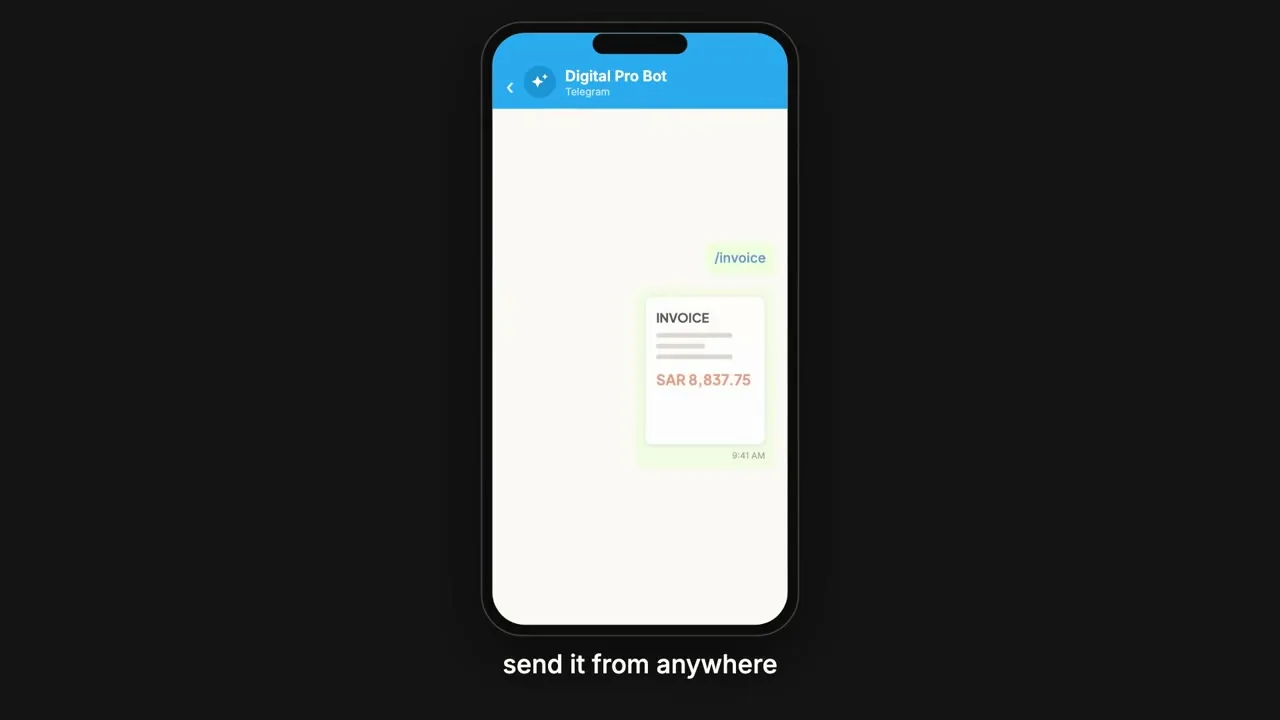
Digital Pro accepts documents in three ways. You can upload a file in the browser, take a photo with the camera, or send it on WhatsApp or Telegram. Single-page and multi-page documents are supported, as PDF, JPG or PNG files. Whoever is standing at the supplier's counter does not need to bring the paper back to the office first. They send a photo and carry on.
Whatever tool you use, the test is simple. Can the person closest to the paper capture it quickly, from the device already in their hand?
Step two: let the software read the fields
Once an invoice is in, the software reads it and fills in the fields. This is where the retyping disappears.
Digital Pro works from eleven ready-made templates, each with the fields that matter for that kind of document. They cover invoices, receipts, delivery notes, business cards and handwritten notes. If your business has paper that is specific to it, you can add a template of your own.
Two details matter for Saudi businesses. First, it reads Arabic content, so an Arabic or mixed Arabic and English invoice is read into the same fields as an English one. Second, it reads handwriting, in English and in Arabic. Handwritten site notes and delivery notes are usually the slowest papers to key in by hand, so they are where automatic reading helps most.
Step three: check only what is doubtful
No reader is right every time, and a business cannot accept an invoice total that is probably correct. This step is what makes automatic reading safe to use.
Digital Pro marks its confidence field by field. Fields it is unsure about are flagged, and the documents that contain them wait in a review queue. The documents list shows each one's status: extracted, needs review or failed. A person opens a flagged document, sees the extracted record beside the original, edits what is wrong and approves it.
The person does not recheck every invoice from scratch. They look at the ones the software doubts and approve the rest. That is the idea behind the whole workflow: attention goes where the risk is. Because the record sits next to the original document, the check is quick and does not mean hunting for the paper.
Step four: send the checked record where it belongs
A checked record is only useful once it is in the system your accounts team uses. There are two routes.
For a spreadsheet, export to Google Sheets in one click. For an ERP, CRM or document management system, send the records through an API. For ERPs, Digital Pro names ERP Pro, SAP, Odoo and Dynamics 365. Your accounting system stays where it is. Digital Pro reads the paper and hands clean records to the system you already run.
One note on scope. Connections between AI Hub products, for example Digital Pro to ERP Pro, are set up as integration work under Custom Development & Integration. They are not built in, so raise them when you scope the project.
A worked example (illustrative)
Take a business that receives 300 supplier invoices a month. This is an illustrative scenario, not a customer result.
If each invoice takes five minutes to key in, that is 25 hours of typing a month. If the same batch is read by software and each invoice is reviewed in one minute, the review comes to five hours. The bigger change is what those hours are spent on: checking flagged fields instead of copying every field.
Your own figures will differ. Count your invoices, time a few being keyed, then time a few being checked. The comparison is yours to run.
Five questions to ask any invoice tool
Put these to every vendor, including us, before you commit.
- How do invoices get in? A good answer covers the browser, the phone camera, messaging apps and multi-page files. If staff have to email the paper to an inbox first, the retyping is only partly gone.
- Does it read our paper? Ask to see Arabic invoices, mixed-language invoices and a handwritten delivery note, using your own samples.
- What happens when it is unsure? A good answer shows the doubtful field marked, the document held in a queue and a person approving it.
- Where do the records go? A good answer names the spreadsheet or ERP route and how the records are sent.
- Who owns the setup? Ask where it runs, which database holds the records and whose AI account does the reading.
Keep it yours
Invoices are some of the most sensitive records a business holds, so the last question matters. Digital Pro deploys in one of two ways. With Cloud, it runs on a Saudi cloud provider in KSA or in your own cloud account. With On-premise, it runs on your own servers. On a Saudi cloud provider in KSA or on your servers in KSA, your data stays in KSA.
You bring your own AI model or key and can change it later. The extracted records live in your database and export to your spreadsheet. It is a one-time cost with no monthly subscription and unlimited users, so leaving costs nothing.
Start with one stack of invoices, run them through the four steps and count how many fields a person actually had to touch.